

Info alert:Important Notice
The Open Data Hub documentation and the opendatahub-documentation repository are archived as of March 2026. To see the latest documentation, go to: Red Hat OpenShift AI Self-Managed documentation.
Working with machine learning features
Table of Contents
- Overview of machine learning features and Feature Store
- Configuring Feature Store
- Defining machine learning features
- Retrieving features for model training
- Feature Store integration with workbenches
- Understanding compute engines in Feature Store
- Using compute engines in Feature Store
- Understanding the Ray compute engine in Feature Store
- Getting started using the Ray template
- Configuring Ray in your Feature Store YAML file
- Understanding Ray mode detection precedence in Feature Store
- Using Ray directed acyclic graph node types in Feature Store
- Using Ray join strategies in Feature Store
- Understanding Ray performance optimization for Feature Store
- Understanding the Spark compute engine in Feature Store
- Configuring Spark in your Feature Store YAML file
- Integrating Ray with other components in Feature Store
- Feature Store command line interface reference
- Feature Store global command
- Feature Store command line interface options
- Feature Store apply command
- Feature Store configuration command
- Feature Store delete command
- Feature Store entities list command
- Feature Store feature views command
- Feature Store init command
- Feature Store materialize command
- Feature Store materialize-incremental command
Feature Store provides an interface between machine learning models and data.
Overview of machine learning features and Feature Store
A machine learning (ML) feature is a measurable property or attribute within a data set that a machine learning model can analyze to learn patterns and make decisions. Examples of features include a customer’s purchase history, demographic data like age and location, weather conditions, and financial market data. You can use these features to train models for tasks such as personalized product recommendations, fraud detection, and predictive maintenance.
Feature Store is a Open Data Hub component that provides a centralized repository that stores, manages, and serves machine learning features for both training and inference purposes.
Audience for Feature Store
The target audience for Feature Store is ML platform and MLOps teams with DevOps experience in deploying real-time models to production. Feature Store also helps these teams build a feature platform that improves collaboration between data engineers, software engineers, machine learning engineers, and data scientists.
- For Data Scientists
-
Feature Store is a tool where you can define, store, and retrieve your features for both model development and model deployment. By using Feature Store, you can focus on what you do best: build features that power your AI/ML models and maximize the value of your data.
- For MLOps Engineers
-
Feature Store is a library that connects your existing infrastructure, such as online database, application server, microservice, analytical database, and orchestration tooling. By using Feature Store, you can focus on maintaining a resilient system, instead of implementing features for data scientists.
- For Data Engineers
-
Feature Store provides a centralized catalog for storing feature definitions, allowing you to maintain a single source of truth for feature data. It provides the abstraction for reading and writing to many different types of offline and online data stores. Using the provided Python SDK or the feature server service, you can write data to the online and offline stores and then read out that data in either batch scenarios for model training or low-latency online scenarios for model inference.
- For AI Engineers
-
Feature Store provides a platform designed to scale your AI applications by enabling seamless integration of richer data and facilitating fine-tuning. With Feature Store, you can optimize the performance of your AI models while ensuring a scalable and efficient data pipeline.
Overview of machine learning features
In machine learning, a feature, also referred to as a field, is an individual measurable property. A feature is used as an input signal to a predictive model. For example, if a bank’s loan department is trying to predict whether an applicant should be approved for a loan, a useful feature might be whether they have filed for bankruptcy in the past or how much credit card debt they currently carry.
customer_id |
avg_cc_balance |
credit_score |
bankruptcy |
1005 |
500.00 |
730 |
0 |
982 |
20000.00 |
570 |
2 |
1001 |
1400.00 |
600 |
0 |
Features are prepared data that help machine learning models understand patterns in the world. Feature engineering is the process of selecting, manipulating, and transforming raw data into features that can be used in supervised learning. As shown in the table, a feature refers to an entire column in a dataset, for example, credit_score. A feature value refers to a single value in a feature column, such as 730.
Overview of Feature Store
Feature Store is an Open Data Hub component that provides an interface between models and data. It is based on the Feast open source project. Feature Store provides a framework for storing, managing, and serving features to machine learning models by using your existing infrastructure and data stores. It facilitates the retrieval of feature data from different data sources to generate and manage features by providing unified feature management capabilities.
The following figure shows where Feature Store fits in the ML workflow. In an ML workflow, features are inputs to ML models. The ML workflow starts with many types of relevant data, such as transactional data, customer references, and product data. The data comes from a variety of databases and data sources. From this data, ML engineers use Feature Store to curate features. The features are input to models and the models can then use the data from the features to make predictions.
Figure 1. Feature Store in the ML workflow
Feature Store is a machine learning data system that provides the following capabilities:
-
Runs data pipelines that transform raw data into feature values
-
Stores and manages feature data
-
Serves feature data consistently for training and inference purposes
-
Manages features consistently across offline and online environments
-
Powers one model or thousands simultaneously with fresh, reusable features, on demand
Feature Store is a centralized hub for storing, processing, and accessing commonly-used features that enables users in your ML organization to collaborate. When you register a feature in a Feature Store, it becomes available for immediate reuse by other models across your organization. The Feature Store registry reduces duplication of data engineering efforts and allows new ML projects to bootstrap with a library of curated, production-ready features.
Feature Store provides consistency in model training and inference, promotes collaboration and usability across multiple projects, monitors lineage and versioning of models for data drifts, leaks, and training skews, and seamlessly integrates with other MLOps tools. Feature Store remotely manages data stored in other systems, such as BigQuery, Snowflake, DynamoDB, and Redis, to make features consistently available at training / serving time.
Feature Store performs the following tasks:
-
Stores features in offline and online stores
-
Registers features in the registry for sharing
-
Serves features to ML models
ML platform teams use Feature Store to store and serve features consistently for offline training, such as batch-scoring, and online real-time model inference.
Feature Store consists of the following key components:
- Registry
-
A central catalog of all feature definitions and their related metadata. It allows ML engineers and data scientists to search, discover, and collaborate on new features. The registry exposes methods to apply, list, retrieve, and delete features.
- Offline Store
-
The data store that contains historical data for scale-out batch scoring or model training. The offline store persists batch data that has been ingested into Feature Store. This data is used for producing training datasets. Examples of offline stores include Dask, Snowflake, BigQuery, Redshift, and DuckDB.
- Online Store
-
The data store that is used for low-latency feature retrieval. The online store is used for real-time inference. Examples of online stores include Redis, Google Cloud Datastore, and DynamoDB.
- Server
-
A feature server that serves pre-computed features online. There are three Feature Store servers:
-
The online feature server - A Python feature server that is an HTTP endpoint that serves features with JSON I/O. You can write and read features from the online store using any programming language that can make HTTP requests.
-
The offline feature server - An Apache Arrow Flight Server that uses the gRPC communication protocol to exchange data. This server wraps calls to existing offline store implementations and exposes interfaces as Arrow Flight endpoints.
-
The registry server - A server that uses the gRPC communication protocol to exchange data. You can communicate with the server using any programming language that can make gRPC requests.
-
- UI
-
A web-based graphical user interface (UI) for viewing all the Feature Store objects and their relationships with each other.
Feature Store provides the following software capabilities:
-
A Python SDK for programmatically defining features and data sources
-
A Python SDK for reading and writing features to offline and online data stores
-
An optional feature server for reading and writing features (useful for non-python languages) by using APIs
-
A web-based UI for viewing and exploring information about features defined in the project
-
A command line interface (CLI) for viewing and updating feature information
Feature Store workflow
The Feature Store workflow involves the following tasks OpenShift cluster administrators, and machine learning (ML) engineers or data scientists:
Note: This Feature Store workflow describes a local implementation that is available in this Technology Preview release.
Cluster administrator
Installs and configures Feature Store, as described in Chapter 2. Configuring Feature Store:
-
Installs OpenShift AI.
-
Enables the Feature Store component by using the Feature Store operator.
-
Creates a project.
-
In the project, creates a Feature Store instance by using a
feast.yamlfile that specifies the offline and online stores. -
Sets up Feature Store so that ML Engineers and data scientists can push and retrieve features to use for model training and inference.
ML Engineer or data scientist
-
Prepares features, as described in Chapter 3: Defining features:
-
Creates a feature definition file.
-
Defines the data sources and other Feature Store objects.
-
Makes features available for real-time inference.
-
-
Prepares features for model training and real-time inference, as described in Chapter 4. Retrieving features for model training:
-
Makes features available to models.
-
Uses
feastPython APIs to retrieve features for model training and inference.
-
Setting up the Feature Store user interface for initial use
You can use a web-based user interface to simplify and accelerate the creation of model development features. This visual interface helps you explore and understand your Feature Store.
You can use the Feature Store UI to access a centralized catalog of features and metadata, such as transformation logic and materialization job status. You can also view features, manage entities, and use lineage and search capabilities.
You must enable the Feature Store UI before you can use it.
Prerequisites
-
You have Administrator access.
-
You have enabled the Feast Operator.
-
You have created a Feature Store CRD, as described in Creating a Feature Store instance in a project.
-
Your REST API server is running.
Procedure
-
Log in to the Open Data Hub Dashboard and click the Feature Store tab on the left navigation.
-
On the Overview page, click the create FeatureStore button.
-
Add YAML definitions to enable the user interface.
-
Edit the following label to enable the UI:
-
Label: -
feature-store-ui: enabled -
This creates a pod and initiates the service registry.
-
-
Click the options icon (⋮) and choose Start job.
-
Click on the Jobs tab and then Logs on the left navigation, to confirm that the CronJob is running.
-
Navigate to the Feature views tab on the left navigation, and you will be able to see your new UI.
Verification
Click Overview. If your Feature Store user interface was created, you see the following cards: * Entities * Data sources * Datasets * Features * Feature views * Feature services
Additional resources
Additional resources
-
For example Feature Store CRD configurations, see the Feast Operator configuration samples.
-
For details about the Feast CRD APIs, see the Feast API documentation.
-
For information on how to implement machine learning features, see the Feast documentation.
-
For end-to-end use case examples of how Feature Store can benefit your AI/ML workflows, see Feast Getting Started: Use Cases.
Configuring Feature Store
As a cluster administrator, you can install and manage Feature Store as a component in the Open Data Hub Operator configuration.
Setting up Feature Store
As a cluster administrator, you must complete the following tasks to set up Feature Store:
-
Enable the Feature Store component.
-
Create a project and add a Feature Store instance.
-
Initialize the Feature Store instance.
-
Set up Feature Store so that ML Engineers and data scientists can push and retrieve features to use for model training and inference.
Before you begin
Before you implement Feature Store in your machine learning workflow, you must have the following information:
- Knowledge of your data and use case
-
You must know your use case and your raw underlying data so that you can identify the properties or attributes that you want to define as features. For example, if you are developing machine learning (ML) models that detect possible credit card fraud transactions, you would identify data such as purchase history, transaction location, transaction frequency, or credit limit.
With Feature Store, you define each of those attributes as a feature. You group features that share a conceptual link or relationship together to define an entity. You define entities to map to the domain of your use case. Not all features must be in an entity.
- Knowledge of your data source
-
You must know the source of the raw data that you want to use in your ML workflow. When you configure the Feature Store online and offline stores and the feature registry, you must specify an environment that is compatible with the data source. Also, when you define features, you must specify the data source for the features.
Feature Store uses a time-series data model to represent data. This data model is used to interpret feature data in data sources in order to build training datasets or materialize features into an online store.
You can connect to the following types of data sources:
- Batch data source
-
A method of collecting and processing data in discrete chunks or batches, rather than continuously streaming it. This approach is commonly used for large datasets or when real-time processing is not essential. In a data processing context, a batch data source defines the connection to the data-at-rest source, allowing you to access and process data in batches. Examples of batch data sources include data warehouses (for example, BigQuery, Snowflake, and Redshift) or data lakes (for example, S3 and GCS). Typically, you define a batch data source when you configure the Feature Store offline store.
- Stream data source
-
The origin of data that is continuously flowing or emitted for online, real-time processing. Feature Store does not have native streaming integrations, but it facilitates push sources that allow you to push features into Feature Store. You can use Feature Store for training or batch scoring (offline), for real-time feature serving (online), or for both. Typically, you define a stream data source when you configure the Feature Store online store.
You can use the following data sources with Feature Store:
Data sources for online stores
-
SQLite
-
Snowflake
-
Redis
-
Dragonfly
-
IKV
-
Datastore
-
DynamoDB
-
Bigtable
-
PostgreSQL
-
Cassandra + Astra DB
-
Couchbase
-
MySQL
-
Hazelcast
-
ScyllaDB
-
Remote
-
SingleStore
For details on how to configure these online stores, see the Feast reference documentation for online stores.
Data sources for offline stores
-
Dask
-
Snowflake
-
BigQuery
-
Redshift
-
DuckDB
An offline store is an interface for working with historical time-series feature values that are stored in data sources. Each offline store implementation is designed to work only with the corresponding data source.
Offline stores are useful for the following purposes:
-
To build training datasets from time-series features.
-
To materialize (load) features into an online store to serve those features at low-latency in a production setting.
You can use only a single offline store at a time. Offline stores are not compatible with all data sources; for example, the BigQuery offline store cannot be used to query a file-based data source.
For details on how to configure these offline stores, see the Feast reference documentation for offline stores.
Data sources for the feature registry
-
Local
-
S3
-
GCS
-
SQL
-
Snowflake
For details on how to configure these registry options, see the Feast reference documentation for the registry.
Enabling the Feature Store component
To allow the ML engineers and data scientists in your organization to work with machine learning features, you must enable the Feature Store component in Open Data Hub.
Prerequisites
-
You have cluster administrator privileges for your OpenShift Container Platform cluster.
-
You have installed Open Data Hub.
Procedure
-
In the OpenShift Container Platform console, click Ecosystem → Installed Operators.
-
Click the Open Data Hub Operator.
-
Click the Data Science Cluster tab.
-
Click the default instance name (for example, default-dsc) to open the instance details page.
-
Click the YAML tab.
-
Edit the
spec:componentssection. For thefeastoperatorcomponent, set themanagementStatefield toManaged:spec: components: feastoperator: managementState: Managed -
Click Save.
Verification
Check the status of the feast-operator-controller-manager-<pod-id> pod:
-
Click Workloads → Deployments.
-
From the Project list, select redhat-ods-applications.
-
Search for the feast-operator-controller-manager deployment.
-
Click the feast-operator-controller-manager deployment name to open the deployment details page.
-
Click the Pods tab.
-
View the pod status.
When the status of the feast-operator-controller-manager-<pod-id> pod is Running, Feature Store is enabled.
Next Step
-
Create a Feature Store instance in a project.
Creating a Feature Store instance in a project
You can add an instance of Feature Store to a project by creating a custom resource definition (CRD) in the OpenShift console.
The following example shows the minimum requirements for a Feature Store CR YAML file:
apiVersion: feast.dev/v1alpha1
kind: FeatureStore
metadata:
  name: sample
spec:
  feastProject: my_feast_project
Prerequisites
-
You have cluster administrator privileges for your OpenShift Container Platform cluster.
-
You have enabled the Feature Store component, as described in Enabling the Feature Store component.
-
You have set up your database infrastructure for the online store, offline store, and registry.
For an example of setting up and running PostgreSQL (for the registry) and Redis (for the online store), see the Feature Store Operator quick start example: https://github.com/feast-dev/feast/tree/stable/examples/operator-quickstart.
-
You have created a project, as described in Creating a project. In the following procedure,
my-projectis the name of the project.
Procedure
-
In the OpenShift console, click the Quick Create (
 ) icon and then click the Import YAML option.
 -
Verify that your project is the selected project.
-
Copy the following code and paste it into the YAML editor:
apiVersion: feast.dev/v1alpha1
kind: FeatureStore
metadata:
  name: sample-git
spec:
  feastProject: credit_scoring_local
  feastProjectDir:
    git:
      url: https://github.com/feast-dev/feast-credit-score-local-tutorial
      ref: 598a270
The
spec.feastProjectDirreferences a Feature Store project that is in the Git repository for a Credit Store tutorial. -
Optionally, change the
metadata.namefor the Feature Store instance. -
Optionally, edit
feastProject, which is the namespace for organizing your Feature Store instance. Note that this project is not the Open Data Hub project. -
Click Create.
When you create the Feature Store CR in OpenShift, Feature Store starts a remote online feature server, and configures a default registry and an offline store with the local provider.
A provider is a customizable interface that provides default Feature Store components, such as the registry, offline store, and online store, that target a specific environment, ensuring that these components can work together seamlessly. The local provider uses the following default settings:
-
Registry: A SQL registry or local file
-
Offline store: A Parquet file
-
Online store: SQLite
Verification
-
In the OpenShift Container Platform console, select Workloads → Pods.
-
Make sure that your project (for example, my-project) is selected.
-
Find the pod that has the
feast-prefix, followed by themetadata.namethat you specified in the CRD configuration, for example,sample-git. -
Verify that the pod status is Running.
-
Click the
feastpod and then select Pod details. -
Scroll down to see the online container. This container is the deployment for the online server. It makes the feature server REST API available in the OpenShift cluster.
-
Scroll up and then click Terminal.
-
Run the following command to verify that the
feastCLI is installed correctly:$ feast --help
-
To view the files for the Feature Store project, enter the following command:
$ ls -la
You should see output similar to the following:
. .. data example_repo.py feature_store.yaml __init__.py __pycache__ test_workflow.py -
To view the
feature_store.yamlconfiguration file, enter the following command:$ cat feature_store.yaml
You should see output similar to the following:
project: my_feast_project
provider: local
online_store:
	path: /feast-data/online_store.db
	type: sqlite
registry:
	path: /feast-data/registry.db
	registry_type: file
auth:
	type: no_auth
entity_key_serialization_version: 3
The feature_store.yaml file defines the following components:
-
project — The namespace for the Feature Store instance. Note that this project refers to the feature project rather than the Open Data Hub project.
-
provider — The environment in which Feature Store deploys and operates.
-
registry — The location of the feature registry.
-
online_store — The location of the online store.
-
auth - The type of authentication and authorization (
no_auth,kubernetes, oroidc) -
entity_key_serialization_version - Specifies the serialization scheme that Feature Store uses when writing data to the online store.
NOTE: Although the offline_store location is not included in the feature_store.yaml file, the Feature Store instance uses a DASK file-based offline store. In the feature_store.yaml file, the registry type is file but it uses a simple SQLite database.
Next steps
-
Optionally, you can customize the default configurations for the offline store, online store, or registry by editing the YAML configuration for the Feature Store CR, as described in Customizing your Feature Store configuration.
-
Give your ML engineers and data scientists access to the project so that they can create a workbench. and provide them with a copy of the
feature_store.yamlfile so that they can add it to their workbench IDE, such as Jupyter.
Configuring and managing Role Based Access Control
You can set permissions using Role-Based Access Control (RBAC) to manage user access to Feature Store. This grants access to actions such as creating, reading, updating and deleting namespaces.
Prerequisites
-
You have Administrator access.
-
You have created a Feature Store instance.
|
Note
|
For more information, see What is Kubernetes Role Based Access Control? |
Procedure
-
Open your command line interface (CLI). Deploy the Feature store custom resource by running the following command:
kubectl apply -f feature-store-cr.yaml-
Locate the Feature Store Custom Resource (CR) YAML file, which is named feature-store-cr.yaml. You will see key value pairs. Change the key type: to Kubernetes:
apiVersion: feast.dev/v1alpha1
kind: FeatureStore
metadata:
name: <feature-store-name>
spec: # ... other configurations ...
authz:
type: Kubernetes
-
-
Verify that your Feature Store projects were created.
kubectl get feast <project name> kubectl get configmaps -l feast.dev/service-type=client <your-project-name> <feast project name> <number of data entries> <time since created> -
Configure data science project permissions. You must create a
permissions.pyfile in the Feature Store pod terminal. This file must reside in thefeature_store directory.You can use a role based policy, a group based policy, combined group namespace policy or read and write permissions.NoteFor an example of a
permission.pyfile, see the Feast Operator RBAC with TLS. -
Transfer your local
permissions.pyfile to the remote container filesystem. In a Kubernetes/OpenShift Container Platform environment, you use a command-line tool such as oc OpenShift Container Platform Command Line Interface or kubectl:`oc/kubectl cp <local-file> <remote-pod>:<remote-path>.` -
Configure and set up the Feature Store Server. If a cron job has been run previously, run feast apply on the online container. Open your command line interface (CLI) and run the following command:
`oc create job --from=cronjob/feast-project-name cronjob-manual-$(date +%s) -n <project name>` `oc exec -it deployments/<feast deployment name> -c online -- feast apply` -
Configure authentication in the OpenShift Container Platform web console. You have full control over your data science project access. You can grant and revoke access to users/groups instantly.
-
Log in to your Open Data Hub or OpenShift Container Platform Console.
-
Navigate to the Data Science Projects tab and select the appropriate project.
-
Click Permissions tab > Users Groups.
-
Name your group.
-
Under Permissions, choose a predefined role, add permissions, and click Save.
-
|
Note
|
The name of your group must exist in your identity provider. The identity provider is configured at the OpenShift Container Platform cluster level, outside of the specific project you are working in. |
Verification
The deployment pod is running and you see the project details in the Feature Store UI and Integration tab.
Additional resources
Adding feature definitions and initializing your Feature Store instance
Initialize the Feature Store instance to start using it.
When you initialize the Feature Store instance, Feature Store completes the following tasks:
-
Scans the Python files in your feature repository and finds all Feature Store object definitions, such as feature views, entities, and data sources.
Note: Feature Store reads all Python files recursively, including subdirectories, even if they do not contain feature definitions. For information on identifying Python files, such as imperative scripts that you want Feature Store to ignore, see Specifying files to ignore.
-
Validates your feature definitions, for example, by checking for uniqueness of features within a feature view.
-
Syncs the metadata about objects to the feature registry. If a registry does not exist, Feature Store creates one. The default registry is a simple Protobuf binary file on disk (locally or in an object store).
-
Creates or updates all necessary Feature Store infrastructure. The exact infrastructure that Feature Store creates depends on the provider configuration that you have set in
feature_store.yaml. For example, when you specifylocalas your provider, Feature Store creates the infrastructure on the local cluster.Note: When you use a cloud provider, such as Google Cloud or Amazon Web Service, the
feast applycommand creates cloud infrastructure that might incur costs for your organization.
Prerequisites
-
An ML engineer on your team has given you a Python file that defines features. For more information about how to define features, see Defining features.
-
If you want to store the feature registry in cloud storage or in a database, you have configured storage for the feature registry. For example, if the provider is Google Cloud, you have created a Cloud Storage bucket for the feature registry.
-
You have the
cluster-adminrole in OpenShift Container Platform. -
You have created a Feature Store instance in your project.
Procedure
-
In the OpenShift console, select Workloads → Pods.
-
Make sure that your project is the current project.
-
Click the
feastpod and then select Pod details. -
Scroll down to see the online container. This container is the deployment for the online server, and it makes the feature server REST API available in the OpenShift cluster.
-
Scroll up and then click Terminal.
-
Copy the feature definition (
.py) file to your Feature Store directory. -
To create a feature registry and add the feature definitions to the registry, run the following command:
feast apply
Verification
-
You should see output similar to the following that indicates that the features in the feature definition file were successfully added to the registry:
Created project credit_scoring_local
Created entity zipcode
Created entity dob_ssn
Created feature view zipcode_features
Created feature view credit_history
Created on demand feature view total_debt_calc

Created sqlite table credit_scoring_local_credit_history
Created sqlite table credit_scoring_local_zipcode_features
-
In the OpenShift console, select Workloads → Deployments to view the deployment pod.
Specifying files to ignore
When you run the feast apply command, Feature Store reads all Python files recursively, including Python files in subdirectories, even if the Python files do not contain feature definitions.
If you have Python files, such as imperative scripts, in your registry folder that you want Feature Store to ignore when you run the feast apply command, you should create a .feastignore file and add a list of paths to all files that you want Feature Store to ignore.
Example .feastignore file
# Ignore virtual environment
venv

# Ignore a specific Python file
scripts/foo.py

# Ignore all Python files directly under scripts directory
scripts/*.py

# Ignore all "foo.py" anywhere under scripts directory
scripts/**/foo.py
Viewing Feature Store objects in the web-based UI
You can use the Feature Store Web UI to view all registered features, data sources, entities, and feature services.
Prerequisites
-
You can access the OpenShift console.
-
You have installed the OpenShift CLI (
oc) as described in the appropriate documentation for your cluster:-
Installing the OpenShift CLI for OpenShift Container Platform
-
Installing the OpenShift CLI for Red Hat OpenShift Service on AWS
-
-
You have enabled the Feature Store component, as described in Enabling the Feature Store component.
-
You have created a Feature Store CRD, as described in Creating a Feature Store instance in a project.
Procedure
-
In the OpenShift console, select Administration → CustomResourceDefinitions.
-
To filter the list, in the Search by Name field, enter feature.
-
Click the FeatureStore CRD and then click Instances.
-
Click the name of the instance that corresponds to the metadata name you specified when you created the Feature Store instance.
-
Edit the YAML to include a reference to
services.uiin thespecsection, as shown in the following example:spec: feastProject: credit_scoring_local feastProjectDir: git: ref: 598a270 url: 'https://github.com/feast-dev/feast-credit-score-local-tutorial' services: ui: {} -
Click Save and then click Reload.
The Feature Store Operator starts a container for the web-based Feature Store UI and creates an OpenShift route that provides the URL so that you can access it.
-
In the OpenShift Container Platform console, select Workloads → Pods.
-
Make sure that your project (for example,
my-project) is selected.You should see a deployment for the web-based UI. Note that OpenShift enables TLS by default at runtime.
-
To populate the web-based UI with the objects in your Feature Store instance:
-
In the OpenShift console, select Workloads → Pods.
-
Make sure that your project (for example,
my-project) is selected. -
Click the
feastpod and then select Pod details. -
Click Terminal.
-
To update the Feature Store instance, enter the following command:
feast apply
-
-
To find the URL for the Feature Store UI, in the OpenShift console, click Networking → Routes.
In the row for the Feature Store UI, for example
feast-sample-ui, the URL is in the Location column. -
Click the URL link to open it in your default web browser.
Verification
The Feature Store Web UI is displayed and shows the feature objects in your project as shown in the following figure:
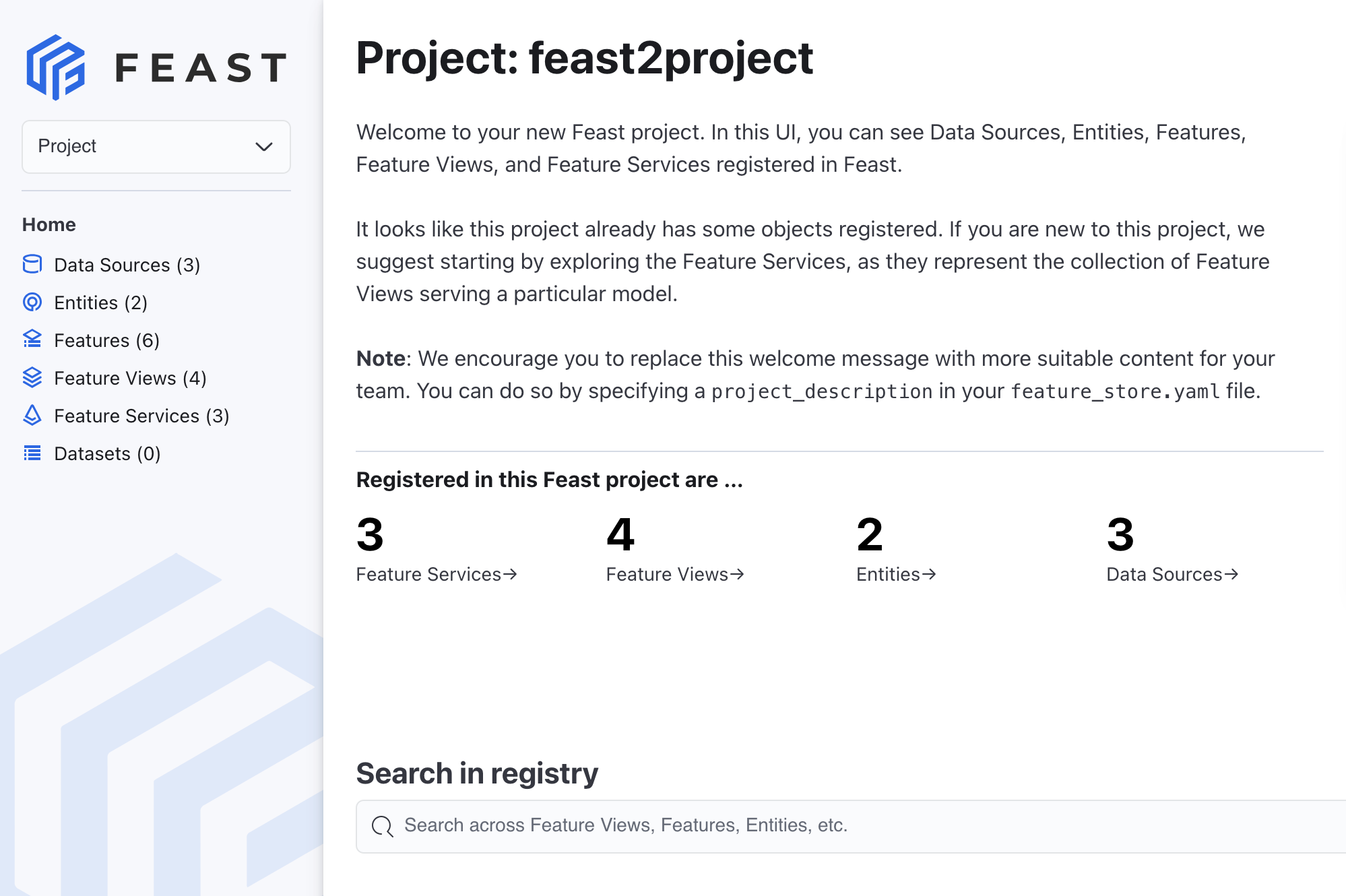
Figure 2. The Feature Store Web UI
Customizing your Feature Store configuration
Optionally, you can apply the following configurations to your Feature Store instance:
-
Configure an offline store
-
Configure an online store
-
Configure the feature registry
-
Configure persistent volume claims (PVCs)
-
Configure role-based access control (RBAC)
The examples in the following sections describe how to customize a Feature Store instance by creating a new custom resource definition (CRD). Alternatively, you can customize an existing feature instance as described in Editing an existing Feature Store instance.
For more information about how you can customize your Feature Store configuration, see the Feast API documentation.
Configuring an offline store
When you create a Feature Store instance that uses the minimal configuration, by default, Feature Store uses a SQLite file-based store for the offline store.
The example in the following procedure shows how to configure DuckDB for the offline store.
You can configure other offline stores, such as Snowflake, BigQuery, Redshift, as detailed in the Feast reference documentation for offline stores.
|
Note
|
The example code in the following procedure requires that you edit it with values that are specific to your use case. |
Prerequisites
-
You have cluster administrator privileges for your OpenShift Container Platform cluster.
-
You have enabled the Feature Store component, as described in Enabling the Feature Store component.
-
You have created a project, as described in Creating a project. In the following procedure,
my-projectis the name of the project. -
Your project includes an existing secret that provides credentials for accessing the database that you want to use for the offline store. The example in the following procedure requires that you have configured DuckDB.
Procedure
-
In the OpenShift console, click the Quick Create (
) icon and then click the Import YAML option. -
Verify that your project is the selected project.
-
Copy the following code and paste it into the YAML editor:
apiVersion: feast.dev/v1alpha1 kind: FeatureStore metadata: name: sample-db-persistence spec: feastProject: my_project services: offlineStore: persistence: file: type: duckdb -
Edit the
services.offlineStoresection to specify values specific to your use case. -
Click Create.
Verification
-
In the OpenShift Container Platform console, select Workloads → Pods.
-
Make sure that your project (for example,
my-project) is selected. -
Find the pod that has the
feast-prefix, followed by the metadata name that you specified in the CRD configuration, for example,feast-sample-db-persistence. -
Verify that the status is Running.
Configuring an online store
When you create a Feature Store instance using the minimal configuration, by default, the online store is a SQLite database.
The example in the following procedure shows how to configure a PostgreSQL database for the online store.
You can configure other online stores, such as Snowflake, Redis, and DynamoDB, as detailed in the Feast reference documentation for online stores.
|
Note
|
The example code in the following procedure requires that you edit it with values that are specific to your use case. |
Prerequisites
-
You have cluster administrator privileges for your OpenShift Container Platform cluster.
-
You have enabled the Feature Store component, as described in Enabling the Feature Store component.
-
You have created a project, as described in Creating a project. In the following procedure,
my-projectis the name of the project. -
Your project includes an existing secret that provides credentials for accessing the database that you want to use for the online store. The example in the following procedure requires that you have configured a PostgreSQL database.
Procedure
-
In the OpenShift console, click the Quick Create (
) icon and then click the Import YAML option. -
Verify that your project is the selected project.
-
Copy the following code and paste it into the YAML editor:
apiVersion: feast.dev/v1alpha1 kind: FeatureStore metadata: name: sample-db-persistence spec: feastProject: my_project services: onlineStore: persistence: store: type: postgres secretRef: name: feast-data-stores -
Edit the
services.onlineStoresection to specify values that are specific to your use case. -
Click Create.
Verification
-
In the OpenShift Container Platform console, select Workloads → Pods.
-
Make sure that your project (for example,
my-project) is selected. -
Find the pod that has the
feast-prefix, followed by the metadata name that you specified in the CRD configuration, for example,feast-sample-db-persistence. -
Verify that the status is Running.
Configuring the feature registry
By default, when you create a feature instance using the minimal configuration, the registry is a simple SQLite database.
The example in the following procedure shows how to configure an S3 registry.
You can configure other types of registries, such as GCS, SQL, Snowflake, as detailed in the Feast reference documentation for registries.
|
Note
|
The example code in the following procedure requires that you edit it with values that are specific to your use case. |
Prerequisites
-
You have cluster administrator privileges for your OpenShift Container Platform cluster.
-
You have enabled the Feature Store component, as described in Enabling the Feature Store component.
-
You have created a project, as described in Creating a project. In the following procedure,
my-projectis the name of the project. -
Your project includes an existing secret that provides credentials for accessing the database that you want to use for the registry. The example in the following procedure requires that you have configured S3.
Procedure
-
In the OpenShift console, click the Quick Create (
) icon and then click the Import YAML option. -
Verify that your project is the selected project.
-
Copy the following code and paste it into the YAML editor:
apiVersion: feast.dev/v1alpha1 kind: FeatureStore metadata: name: sample-s3-registry spec: feastProject: my_project services: registry: local: server: restAPI: true persistence: file: path: s3://bucket/registry.db s3_additional_kwargs: ServerSideEncryption: AES256 ACL: bucket-owner-full-control CacheControl: max-age=3600 -
Edit the
services.registrysection to specify values that are specific to your use case. -
Click Create. You have now configured your registry service and enabled the REST APIs.
Verification
-
In the OpenShift Container Platform console, select Workloads → Pods.
-
Make sure that your project (for example,
my-project) is selected. -
Find the pod that has the
feast-prefix, followed by the metadata name that you specified in the CRD configuration, for example,sample-s3-registry. -
Click the feast pod and then select Pod details.
-
Click Terminal.
-
In the Terminal window, enter the following command to view the configuration, including the S3 registry:
$ cat feature_store.yaml
Example PVC configuration
When you configure the online store, offline store, or registry, you can also configure persistent volume claims (PVCs) as shown in the following Feature Store custom resource definition (CRD) example.
|
Note
|
The following example code requires that you edit it with values that are specific to your use case. |
apiVersion: feast.dev/v1alpha1
kind: FeatureStore
metadata:
  name: sample-pvc-persistence
spec:
  feastProject: my_project
  services:
    onlineStore:   # (1)
      persistence:
        file:
          path: online_store.db
          pvc:
            ref:
              name: online-pvc
            mountPath: /data/online
    offlineStore:   # (2)
      persistence:
        file:
          type: duckdb
          pvc:
            create:
              storageClassName: standard
              resources:
                requests:
                  storage: 5Gi
            mountPath: /data/offline
    registry:   # (3)
      local:
        persistence:
          file:
            path: registry.db
            pvc:
              create: {}
              mountPath: /data/registry
---
apiVersion: v1
kind: PersistentVolumeClaim
metadata:
  name: online-pvc
spec:
  accessModes:
    - ReadWriteOnce
  resources:
    requests:
storage: 5Gi-
The online store specifies a PVC that must already exist.
-
The offline store specifies a storage class name and storage size.
-
The registry configuration specifies that the Feature Store Operator creates a PVC with default settings.
Editing an existing Feature Store instance
The examples in this document describe how to customize a Feature Store instance by creating a new custom resource definition (CRD). Alternatively, you can customize an existing feature instance.
Prerequisites
-
You have cluster administrator privileges for your OpenShift Container Platform cluster.
-
You have created a Feature Store instance, as described in Deploying a Feature Store instance in a project.
Procedure
-
In the OpenShift console, select Administration → CustomResourceDefinitions.
-
To filter the list, in the Search by Name field, enter feature.
-
Click the FeatureStore CRD and then click Instances.
-
Select the instance that you want to edit, and then click YAML.
-
In the YAML editor, edit the configuration.
-
Click Save and then click Reload.
Verification
The Feature Store instance CRD deploys successfully.
Defining machine learning features
As part of the Feature Store workflow, ML engineers or data scientists are responsible for identifying data sources and defining features of interest.
Setting up your working environment
You must set up your Open Data Hub working environment so that you can use features in your machine learning workflow.
Prerequisites
-
You have access to the Open Data Hub project in which your cluster administrator has set up the Feature Store instance.
Procedure
-
From the Open Data Hub dashboard, click Projects.
-
Click the name of the project in which your cluster administrator has set up the Feature Store instance.
-
In the project in which the cluster administrator set up Feature Store, create a workbench, as described in Creating a workbench.
-
To open the IDE (for example, JuypterLab), in a new window, click the open icon (
 ) next to the workbench.
 -
Add a
feature_store.yamlfile to your notebook environment. For example, upload a local file or clone a Git repo that contains the file, as described in Uploading an existing notebook file to JupyterLab from a Git repository by using the CLI. -
Open a new Python notebook.
-
In a cell, run the following command to install the
feastCLI:! pip install feast
Verification
-
Run the following command to list the available features:
! feast features list
The output should show a list of features, Feature View and data type similar to the following:
Feature	Feature         View          Data Type
credit_card_due	        credit_history			Int64
mortgage_due	        credit_history			Int64
student_loan_due	    credit_history			Int64
vehicle_loan_due	    credit_history			Int64
city			        zipcode_features		String
state			        zipcode_features		String
location_type		    zipcode_features		String
-
Optionally, run the following commands to list the registered feast projects, feature views, and entities.
! feast projects list

! feast feature-views list

! feast entities list
About feature definitions
A machine learning feature is a measurable property or field within a data set that a machine learning model can analyze to learn patterns and make decisions. In Feature Store, you define a feature by defining the name and data type of a field.
A feature definition is a schema that includes the field name and data type, as shown in the following example:
from feast import Field
from feast.types import Int64

credit_card_amount_due = Field(
    name="credit_card_amount_due",
    dtype=Int64
)
For a list of supported data types for fields in Feature Store, see the feast.types module in the Feast documentation.
In addition to field name and data type, a feature definition can include additional metadata, specified as descriptions of features, as shown in the following example:
from feast import Field
from feast.types import Int64


credit_card_amount_due = Field(
    name="credit_card_amount_due",
    dtype=Int64,
    description="Credit card amount due for user",
    tags={"team": "loan_department"},
)
Specifying the data source for features
As an ML engineer or a data scientist, you must specify the data source for the features that you want to define.
The data source differs depending on whether you are using an offline store, for batch data and training data sets, or an online store, for model inference. Optionally, you can use a Parquet or a Delta-formatted file as the data source. You can specify a local file or a file in storage, such as Amazon Simple Storage Service (S3).
For offline stores, specify a batch data source. You can specify a data warehouse, such as BigQuery, Snowflake, Redshift, or a data lake, such as Amazon S3 or Google Cloud. You can use Feature Store to ingest and query data across both types of data sources.
For online stores, specify a database backend, such as Redis, Google Cloud Datastore, or DynamoDB.
Prerequisites
-
You know the location of the data source for your ML workflow.
Procedure
-
In the editor of your choice, create a new Python file.
-
At the beginning of the file, specify the data source for the features that you want to define within the file.
For example, use the following code to specify the data source as a Parquet-formatted file:
from feast import FileSource from feast.data_format import ParquetFormat parquet_file_source = FileSource( file_format=ParquetFormat(), path="file:///feast/customer.parquet", ) -
Save the file.
About organizing features by using entities
Within a feature view, you can group features that share a conceptual link or relationship together to define an entity. You can think of an entity as a primary key that you can use to fetch features. Typically, an entity maps to the domain of your use case. For example, a fraud detection use case could have customers and transactions as their entities, with group-related features that correspond to these customers and transactions.
A feature does not have to be associated with an entity. For example, a feature of a customer entity could be the number of transactions they have made on an average month, while a feature that is not observed on a specific entity could be the total number of transactions made by all users in the last month.
customer = Entity(name='dob_ssn', join_keys=['dob_ssn'])The entity name uniquely identifies the entity. The join key identifies the physical primary key on which feature values are joined together for feature retrieval.
The following table shows example data with a single entity column (dob_ssn) and two feature columns (credit_card_due and bankruptcies).
| row | timestamp | dob_ssn | credit_card_due | bankruptcies |
|---|---|---|---|---|
1 |
5/22/2025 0:00:00 |
19530219_5179 |
833 |
0 |
2 |
5/22/2025 0:00:00 |
19500806_6783 |
1297 |
0 |
3 |
5/22/2025 0:00:00 |
19690214_3370 |
3912 |
1 |
4 |
5/22/2025 0:00:00 |
19570513_7405 |
8840 |
0 |
Creating feature views
You define features within a feature view. A feature view is an object that represents a logical group of time-series feature data in a data source. Feature views indicate to Feature Store where to find your feature values, for example, in a parquet file or a BigQuery table.
By using feature views, you define the existing feature data in a consistent way for both an offline environment, when you train your models, and an online environment, when you want to serve features to models in production.
Feature Store uses feature views during the following tasks:
-
Generating training datasets by querying the data source of feature views to find historical feature values. A single training data set can consist of features from multiple feature views.
-
Loading feature values into an online or offline store. Feature views determine the storage schema in the online or offline store. Feature values can be loaded from batch sources or from stream sources.
-
Retrieving features from the online or offline store. Feature views provide the schema definition for looking up features from the online or offline store.
When you create a feature project, the feature_repo subfolder includes a Python file that includes example feature definitions (for example, example_features.py) .
To define new features, you can edit the code in the example file or add a new file to the feature repository.
Note: Feature views only work with timestamped data. If your data does not contain timestamps, insert dummy timestamps. The following example shows how to create a table with dummy timestamps for PostgreSQL-based data:
CREATE TABLE employee_metadata (
  employee_id INT PRIMARY KEY,
  department TEXT,
  dummy_event_timestamp TIMESTAMP DEFAULT '2024-01-01'
);
INSERT INTO employee_metadata (employee_id, department)
VALUES (1, 'Advanced'), (2, 'New');
Prerequisites
-
You know what data is relevant to your use case.
-
You have identified attributes in your data that you want to use as features in your ML models.
Procedure
-
In your IDE, such as JupyterLab, open the
feature_repo/example_features.pyfile that contains example feature definitions or create a new Python (.py) file in thefeature_repodirectory. -
Create a feature view that is relevant to your use case based on the structure shown in the following example:
credit_history_source = FileSource( (1) name="Credit history", path="data/credit_history.parquet", file_format=ParquetFormat(), timestamp_field="event_timestamp", created_timestamp_column="created_timestamp", ) credit_history = FeatureView( (2) name="credit_history", entities=[dob_ssn], (3) ttl=timedelta(days=90), (4) schema=[ (5) Field(name="credit_card_due", dtype=Int64), Field(name="mortgage_due", dtype=Int64), Field(name="student_loan_due", dtype=Int64), Field(name="vehicle_loan_due", dtype=Int64), Field(name="hard_pulls", dtype=Int64), Field(name="missed_payments_2y", dtype=Int64), Field(name="missed_payments_1y", dtype=Int64), Field(name="missed_payments_6m", dtype=Int64), Field(name="bankruptcies", dtype=Int64), ], source=credit_history_source, (6) tags={"origin": "internet"}, (7) )-
A data source that provides time-stamped tabular data. A feature view must always have a data source for the generation of training datasets and when materializing feature values into the online store. Possible data sources are batch data sources from data warehouses (BigQuery, Snowflake, Redshift), data lakes (S3, GCS), or stream sources. Users can push features from data sources into Feature Store, and make the features available for training or batch scoring ("offline"), for realtime feature serving ("online"), or both.
-
A name that identifies the feature view in the project. Within a feature view, feature names must be unique.
-
Zero or more entities. Feature views generally contain features that are properties of a specific object, in which case that object is defined as an entity and included in the feature view. If the features are not related to a specific object, the feature view might not have entities.
-
(Optional) Time-to-live (TTL) to limit how far back to look when Feature Store generates historical datasets.
-
One or more feature definitions.
-
A reference to the data source.
-
(Optional) You can add metadata, such as tags that enable filtering of features when viewing them in the UI, listing them by using a CLI command, or by querying the registry directly.
-
-
Save the file.
Retrieving features for model training
Retrieving data science features
You can connect to the Feature Store and consume the features necessary for model development and inference.
Prerequisites
-
Your Feature Store has been deployed.
-
User access permissions have been configured by the administrator.
-
You have access to a relevant project and a workbench.
-
Your Feature Store client configuration must be complete.
Procedure
-
From the Open Data Hub dashboard, click Projects.
The Projects page opens.
-
Click the name of the project that you want to work on.
-
Create a new workbench or open an existing workbench with the Feast software development kit (SDK).
-
In the Feature Store client configuration table, select the configmaps associated with the desired repositories.
-
Copy the Python script that is generated on the left side of the page. that is generated on the left of the page.
-
Click the Workbenches tab and launch a workbench.
-
Paste the Python script into the workbench cell.
-
|
Note
|
|
Feature Store integration with workbenches
The integration of Feature Store with Red Hat workbenches resolves the competing demands of agility and security. This capability removes the friction of manual configuration and script copying, accelerating workflows and enabling seamless feature management directly within Jupyter notebooks. A governance framework ensures efficiency, scalable, role-based access control (RBAC), and secure authentication. This safeguards sensitive data and mitigates vulnerabilities enterprise-wide.
Connecting a workbench to a Feature Store
You can connect your workbench to a Feature Store instance to avoid manual configuration and immediately access features for your models.
Prerequisites
-
You have logged in to the Red Hat dashboard.
-
You have the necessary system permissions to view the specific Feature Store instances you intend to connect.
-
A Feature Store instance is deployed and available in your OpenShift Container Platform cluster.
You can avoid manual scripting by selecting a preconfigured Feature Store during the workbench provisioning process.
Procedure
-
Log in to the Red Hat Red Hat dashboard, and click Data Science Projects.
-
Click the name of the project that contains the workbench you want to configure.
-
Perform one of the following actions:
-
Create a new workbench: In the workbenches section, click Create workbench.
-
Edit an existing workbench: In the workbenches section, click the More options icon (⋮) beside the workbench name and click Edit workbench.
-
-
Scroll to the Feature Store Configuration section.
-
Select one or more available Feature Store instances from the Select Feature Store list.
-
Follow the instructions in the Example code dialog box under the Feature Store selection dropdown menu.
|
Note
|
The Select Feature Store list displays only the Feature Store instances that your user account is authorized to access. |
-
Click Create workbench or Update workbench. The workbench starts with the Feature Store configuration files automatically mounted, enabling you to efficiently integrate features into your notebooks.
Verification
Verify the success of the procedure by creating a Python object that uses the Feature Store client configuration. Copy and paste the following code:
fs_banking = FeatureStore(fs_yaml_file=’ /opt/app-root/config/feast_configs/fs_banking.yaml’)
fs_banking.list_feature_views()
fs_banking.get_historical_features(. . . . .)
fs_banking.get_online_features(. . . . .)
Additional resources
Verifying access control to your Feature Store instances
You must ensure that access to Feature Stores is restricted based on defined roles and permissions.
To maintain regulatory compliance and safeguard sensitive data, the system uses role-based access control (RBAC) to determine which Feature Stores are visible to specific users. This mechanism mitigates potential vulnerabilities by preventing unauthorized users from discovering or selecting restricted Feature Stores.
Prerequisites
-
You must be logged into the Red Hat dashboard.
-
You must have the
feast-configs-registryConfigMap present in your infrastructure namespace (e.g., opendatahub or redhat-ods-applications).
Procedure
-
Define the specific user groups, namespaces or data science projects, requiring access to a Feature Store instance in your Data science projects permissions tab.
-
Assign the appropriate RBAC permissions to user groups or data science projects in the Feature Store configuration maps.
Verification
Verify the configuration by logging in as a user with restricted permissions to a specific feature store:
-
Attempt to create a workbench.
-
Confirm that the Select Feature Store list displays only the instances the user is authorized to access.
-
You can also log in as a user with no permissions and confirm that no Feature Stores are selectable.
Your data access is now protected, ensuring that different personas access only the features appropriate for their role.
Additional resources
For more information about RBAC, see the following: Setting Up Kubernetes RBAC for Feast
|
Note
|
The RBAC document displays all policies available in the Feast upstream. However, Red Hat supports Group and Namespace/Data_Science_Project based authorization policies only. Role-based policies are NOT supported. |
Feature Store configuration reference
Understand how the system mounts configuration files to enable you to create and use features in your code.
| Configuration element | Description |
|---|---|
Configuration path |
The system mounts the necessary Feature Store client configuration files to the following Feast configuration file:
|
Python instantiation |
Initialize Feature Store with the path to the mounted configuration file:
|
Troubleshooting access |
If you cannot view a specific Feature Store in the workbench dropdown menu, an administrator must verify a couple items for you. They need to verify that you have the correct role-based access control (RBAC) based on your |
Understanding compute engines in Feature Store
You can configure compute engines to manage feature pipelines, transformations, and materialization in Red Hat. By integrating your Feature Store with distributed processing frameworks, you can centralize feature management and improve data reusability across your organization.
Using compute engines in Feature Store
You can use compute engines to run feature pipelines on back ends such as Spark, PyArrow, Pandas, or Ray. These pipelines perform transformations, aggregations, joins, and materializations.
Use the compute engine to build and run directed acyclic graphs (DAGs), for modular and scalable workflows.
Available operations:
-
materialize(): Generate features for offline and online stores in batch and stream modes. -
get_historical_features(): Retrieve point-in-time training datasets.
Key concepts for compute engines
Understand the following components for better execution of materialization and retrieval tasks:
| Concept | Definition |
|---|---|
Compute engine |
The interface for executing materialization and retrieval tasks. |
Feature builder |
Constructs a Directed Acyclic Graphs (DAG), from a feature view definition for a specific backend. |
Feature resolver |
Arranges tasks in the correct sequence, so each step runs only after its dependencies. |
DAG |
A DAG operation, such as read, aggregate, or join. |
Execution plan |
Runs nodes in the correct sequence and saves the results. |
Execution Context |
Collects configuration, registry, stores, entity data, and node outputs. |
Understanding the feature resolver and builder
The feature builder starts a feature resolver that extracts a DAG from FeatureView definitions, resolving dependencies and ensuring the correct execution order. A FeatureView represents a logical data source, whereas a DataSource represents the physical data source.
When defining a feature view, the source can be a physical data source, a derived feature view, or a list of feature views. Use the feature resolver to organize data sources into a directed acyclic graph (DAG). The resolver identifies node dependencies to generate the final output. The FeatureBuilder then builds DAG node objects for each operation, such as read, join, filter, or aggregate.
| Compute engine | Description |
|---|---|
Spark compute engine |
Distributed DAG execution using Apache Spark. Supports point-in-time joins and large-scale materialization. Integrates with Spark Offline Store and Spark materialization job. |
Ray compute engine |
Provides distributed DAG execution. Enables automatic resource management and optimization. Integrates with Ray Offline Store and Ray Materialization Job. |
Local compute engine |
Runs on Arrow and a backend you specify (e.g., Pandas, Polars). |
Enables local development, testing, or lightweight feature generation. |
Supports |
Feature builder node details
Use the feature builder to build a directed acyclic graph (DAG) from a feature view definition to determine the operation order. The feature resolver identifies data sources and sorts the nodes to resolve dependencies.
| Node type | Description |
|---|---|
Source read node |
The process begins by reading the data source. |
Transformation node or join node |
If a feature transformation is defined, the system applies a transformation node. If there are multiple sources the system applies a join node. |
Filter node |
The system always includes this node to apply time to live (TTL) parameters or user-defined filters. |
Aggregation node |
The system applies this node if the feature view includes defined aggregations. |
Deduplication node |
The system applies this node for |
Validation node |
The system applies this node if |
Output |
Use retrieval output for |
Understanding the Ray compute engine in Feature Store
The Ray compute engine is a distributed compute implementation that uses Ray for executing feature pipelines. This includes transformations, aggregations, joins, and materializations. It provides scalable and efficient distributed processing for both materialize() and get_historical_features() operations.
The Ray RAG template features:
-
Parallel embedding generation: Uses the Ray compute engine to generate embeddings across multiple workers
-
Vector search integration: Works with Milvus for semantic similarity search
-
Complete RAG pipeline: The Ray compute engine automatically distributes the embedding generation across available workers, making it ideal for processing large datasets efficiently
Ray compute engine features:
-
Distributed directed acyclic graphs (DAG) Execution: Executes feature computation DAG across Ray clusters
-
Intelligent Join Strategies: Automatic selection between broadcast and distributed joins
-
Lazy Evaluation: Deferred execution for optimal performance
-
Resource Management: Automatic scaling and resource optimization
-
Point-in-Time Joins: Efficient temporal joins for historical feature retrieval
Getting started using the Ray template
Use the Ray retrieval-augmented generation (RAG) template to build scalable, high-performance applications. This end-to-end framework enables parallel processing of large datasets, which reduces the processing time and memory intensity required on a single machine.
Prerequisites
-
You have a data science project with an active workbench.
-
Your workbench image includes the Feature Store.
Procedure
-
Apply the Ray RAG Template
Run the following code for RAG (Retrieval-Augmented Generation) applications with distributed embedding generation:
feast init -t ray_rag my_rag_project
cd my_rag_project/feature_repo
Your Ray template is now active.
Configuring Ray in your Feature Store YAML file
Configure the Ray compute engine in Feature Store by defining Ray-specific settings in the feature_store.yaml file. This enables distributed execution of feature pipelines for materialization and historical feature retrieval.
Prerequisites
-
Your Ray cluster is running.
Procedure
-
Configure the Ray compute engine in your
feature_store.yamlfile:
YAML |
Available options |
|
None |
|
None |
|
None |
|
None |
|
Maximum number of workers |
|
Broadcast join threshold (MB) |
|
Parallelism multiplier |
|
Target partition size (MB) |
|
Time window for distributed joins |
|
Ray cluster address |
| Option | Type | Default | Description |
|---|---|---|---|
type |
string |
|
Must be ray.engine |
|
integer |
none (uses all cores) |
This enables the maximum number of Ray workers. |
|
boolean |
true |
This enables performance optimizations. |
|
integer |
100 |
This is the size threshold for broadcast joins (MB). |
|
integer |
2 |
This enables you to run many CPU cores simultaneously. |
|
integer |
64 |
This allows you to identify a partition size (MB). |
|
string |
1H |
This enables a time window for distributed joins. |
|
string |
none |
This enables the Ray cluster address, which triggers the remote mode. |
|
boolean |
none |
This enables KubeRay mode (overrides |
|
dictionary |
none |
This enables KubeRay configuration dictionary with keys: |
|
boolean |
false |
This enables Ray progress bars and logging. |
|
boolean |
true |
This enables distributed joins for large datasets. |
|
string |
none |
This is the remote path for batch materialization jobs. |
|
dictionary |
none |
These are Ray configuration parameters such as memory and CPU limits. |
Understanding Ray mode detection precedence in Feature Store
You can manage mode detection precedence since the Ray compute engine automatically detects the execution mode:
-
Environment Variables (→) KubeRay mode (if
FEAST_RAY_USE_KUBERAY=true) -
Config
kuberay_conf(→) KubeRay mode -
Config
ray_address(→) Remote mode -
Default (→) Local mode
|
Note
|
It is recommended that you use KubeRay mode. |
|
Note
|
For more information about Ray compute engine usage examples, see Ray compute engine usage examples. |
Using Ray directed acyclic graph node types in Feature Store
Use Ray directed acyclic graph (DAG) node types to build scalable, high-performance feature generation workflows. Ray optimizes resources and reduces execution time by handling data partitioning and statically allocating buffers.
Ray read node
-
Reads data from Ray-compatible sources:
-
Supports Parquet, comma-separated values (CSV), and other formats
-
Handles partitioning and schema inference
-
Applies field mappings and filters
-
Ray join node
-
Performs distributed joins:
-
Broadcast join: Use for small datasets (<100MB)
-
Distributed join: Use for large datasets with time-based windowing
-
Automatic strategy selection: Based on dataset size and cluster resources
-
Ray filter node
-
Applies filters and time-based constraints:
-
Time to live (TTL)-based filtering
-
Timestamp range filtering
-
Custom predicate filtering
-
Ray aggregation node
-
Handles feature aggregations:
-
Windowed aggregations
-
Grouped aggregations
-
Custom aggregation functions
-
Ray transformation node
-
Applies feature transformations:
-
Row-level transformations
-
Column-level transformations
-
Custom transformation functions
-
Ray write node
-
Writes results to various targets:
-
Online stores
-
Offline stores
-
Temporary storage
-
Using Ray join strategies in Feature Store
The Ray compute engine automatically selects optimal join strategies:
.Used for small feature datasets:
-
Selects this join automatically when feature data is <100MB.
-
Caches features in Ray’s object store.
-
Distributes entities across a cluster.
-
Copies feature data and sends it to each worker.
-
Uses the distributed window join.
-
Used for large feature datasets.
-
Selects this join automatically when feature data <100MB.
-
Partitions data by time windows.
-
Provides point-in-time joins within each window.
-
Combines results across windows.
Example of using strategy selection logic
def select_join_strategy(feature_size_mb, threshold_mb):
    if feature_size_mb < threshold_mb:
        return "broadcast"
    else:
        return "distributed_windowed"
Understanding Ray performance optimization for Feature Store
Ray is a distributed execution engine that scales Feast feature engineering and retrieval-augmented generation (RAG) workloads. By processing large datasets in parallel, Ray accelerates pipelines and reduces costs compared to single-node processing.
Use the Ray automatic optimizations for increased efficiency.
-
Enabling automatic optimization
-
The Ray compute engine includes several automatic optimizations:
-
Partition optimization: Automatically determines optimal partition sizes
-
Join strategy selection: Chooses between broadcast and distributed joins
-
Resource allocation: Scales workers based on available resources
-
Memory management: Handles out-of-core processing for large datasets
-
-
Manual tuning example
If you have specific workloads that require custom tuning, you can fine-tune performance:
batch_engine:
    type: ray.engine
    # Fine-tuning for high-throughput scenarios
    broadcast_join_threshold_mb: 200      # Larger broadcast threshold
    max_parallelism_multiplier: 1        # Conservative parallelism
    target_partition_size_mb: 512        # Larger partitions
    window_size_for_joins: "2H"          # Larger time windows
Understanding Ray monitoring and metrics in Feature Store
You can check cluster resources and monitor job progress when working with the Ray compute engine.
See the following Python example for how to extract monitoring and metrics data:
import ray

# Check cluster resources
resources = ray.cluster_resources()
print(f"Available CPUs: {resources.get('CPU', 0)}")
print(f"Available memory: {resources.get('memory', 0) / 1e9:.2f} GB")

# Monitor job progress
job = store.get_historical_features(...)
# Ray compute engine provides built-in progress tracking
Understanding the Spark compute engine in Feature Store
Use the Spark compute engine to run distributed batch materialization and historical retrieval operations. Batch materialization includes materialize and materialize-incremental operations. The engine processes large-scale data from offline stores, such as Snowflake, Google BigQuery, and Apache Spark SQL.
The Spark compute engine can read various data sources and perform distributed or custom transformations. You can use the engine to perform these tasks: * Read from various data sources, such as Apache Spark SQL, Google BigQuery, and Snowflake. * Execute distributed feature transformations and aggregations. * Run custom transformations by using Apache Spark SQL or user-defined functions (UDFs).
Configuring Spark in your Feature Store YAML file
Configure the Spark compute engine in Feature Store by defining Spark-specific settings in the feature_store.yaml file or programmatically using a Feast RepoConfig. This enables distributed batch materialization and historical feature retrieval using Spark.
Prerequisites
-
Your Spark cluster is running.
Procedure
-
Configure the Spark compute engine in your
feature_store.yamlfile:
...
offline_store:
  type: snowflake.offline
...
batch_engine:
  type: spark.engine
  partitions: 10 # number of partitions when writing to the online or offline store
  spark_conf:
    spark.master: "local[*]"
    spark.app.name: "Feast Spark Engine"
    spark.sql.shuffle.partitions: 100
    spark.executor.memory: "4g"
Configuring the Spark offline store example
You can configure the feature store by using the feature_store.py file. This configuration uses Amazon DynamoDB for the online store and the Spark compute engine for the offline store.
|
Note
|
In the following code, replace [YOUR_BUCKET] with the name of your specific S3 bucket. |
from feast import FeatureStore, RepoConfig
from feast.repo_config import RegistryConfig
from feast.infra.online_stores.dynamodb import DynamoDBOnlineStoreConfig
from feast.infra.offline_stores.contrib.spark_offline_store.spark import SparkOfflineStoreConfig

repo_config = RepoConfig(
    registry="s3://[YOUR_BUCKET]/feast-registry.db",
    project="feast_repo",
    provider="aws",
    offline_store=SparkOfflineStoreConfig(
      spark_conf={
        "spark.ui.enabled": "false",
        "spark.eventLog.enabled": "false",
        "spark.sql.catalogImplementation": "hive",
        "spark.sql.parser.quotedRegexColumnNames": "true",
        "spark.sql.session.timeZone": "UTC"
      }
    ),
    batch_engine={
      "type": "spark.engine",
      "partitions": 10
    },
    online_store=DynamoDBOnlineStoreConfig(region="us-west-1"),
    entity_key_serialization_version=3
)
store = FeatureStore(config=repo_config)
Integrating Ray with other components in Feature Store
You can integrate Ray with Spark, cloud storage and feature transformations. This enables distributed processing of large-scale machine learning workloads, from feature engineering to serving. It also enables efficient handling of intensive tasks.
Integrating Ray with the Spark offline store in Feature Store
# Use Ray compute engine with Spark offline store
offline_store:
    type: spark
    spark_conf:
        spark.executor.memory: "4g"
        spark.executor.cores: "2"
batch_engine:
    type: ray.engine
    max_workers: 8
    enable_optimization: true
Integrating Ray with cloud storage in Feature Store
# Use Ray compute engine with cloud storage
offline_store:
    type: ray
    storage_path: s3://my-bucket/feast-data
batch_engine:
    type: ray.engine
    ray_address: "ray://ray-cluster:10001"
    broadcast_join_threshold_mb: 50
Integrating Ray with feature transformations
from feast import FeatureView, Field
from feast.types import Float64
from feast.on_demand_feature_view import on_demand_feature_view

@on_demand_feature_view(
    sources=["driver_stats"],
    schema=[Field(name="trips_per_hour", dtype=Float64)]
)
def trips_per_hour(features_df):
    features_df["trips_per_hour"] = features_df["avg_daily_trips"] / 24
    return features_df

# Ray compute engine handles transformations efficiently
features = store.get_historical_features(
    entity_df=entity_df,
    features=["trips_per_hour:trips_per_hour"]
)-
Ray native transformations
If you have distributed transformations that use Ray’s dataset and parallel processing capabilities, use mode=ray in your BatchFeatureView:
# Feature view with Ray transformation mode
document_embeddings_view = BatchFeatureView(
    name="document_embeddings",
    entities=[document],
    mode="ray",  # Enable Ray native transformation
    ttl=timedelta(days=365),
    schema=[
        Field(name="document_id", dtype=String),
        Field(name="embedding", dtype=Array(Float32), vector_index=True),
        Field(name="movie_name", dtype=String),
        Field(name="movie_director", dtype=String),
    ],
    source=movies_source,
    udf=generate_embeddings_ray_native,
    online=True,
)
Feature Store command line interface reference
You can use the Feature Store command-line interface (CLI) to manage your Feature Store deployments and repositories. The CLI tool, feast, is bundled with the Feature Store Python package and is available immediately after installation. You can run the commands in your workbench.
General usage of command line options
feast [OPTIONS] COMMAND [ARGS]...Options
-c, --chdir TEXT-
Switch to a different feature repository directory before executing the given subcommand.
--help-
Show this message and exit.
Feature Store global command
You can use the following global options with the feast command in your Feature Store workbench:
| Option | Description |
|---|---|
|
Use this global, top-level option with other commands. |
|
Run |
Feature Store command line interface options
The following table lists the available Feature Store CLI commands. Run these in your workbench.
| Command | Description |
|---|---|
|
Create or update a Feature Store deployment. |
|
Display the Feature Store configuration. |
|
Delete a Feature Store object from the registry. |
|
Access entities. |
|
Access feature views. |
|
Create a new Feature Store repository. |
|
Run a non-incremental materialization job to ingest feature data. |
|
Run an incremental materialization job to ingest feature data. |
|
Print the contents of the metadata registry. |
|
Tear down the deployed Feature Store infrastructure. |
|
Display the Feature Store SDK version. |
Feature Store apply command
The feast apply command updates a Feature Store deployment to match the feature definitions in the feature repository.
The command performs the following actions:
-
Scans definitions
Scans the Python files in the feature repository to identify Feature Store object definitions. This includes feature views, entities, and data sources.
-
Validates definitions
Validates feature definitions to ensure accuracy.
-
Synchronizes metadata
Synchronizes the metadata of Feature Store objects in the registry. If a registry does not exist, the Feature Store creates one. The standard registry is a
protobufbinary file stored on a disk, either locally or in an object store. -
Provisions infrastructure
Creates the necessary Feature Store infrastructure. The deployed infrastructure depends on the provider configuration specified in the
feature_store.yamlfile:-
Local provider: Creates a SQLite online store.
-
Cloud provider: Creates cloud infrastructure for services such as Google Cloud Platform (GCP) or Amazon Web Services (AWS).
NoteCreating cloud infrastructure might incur costs.
-
|
Important
|
The |
Feature Store configuration command
The Feature Store configuration command displays the active configuration for the Feature Store environment. The output includes both user-provided and default configurations.
Configuration example command and output
Feature Store configuration
project: foo
registry: data/registry.db
provider: local
online_store:
    type: sqlite
    path: data/online_store.db
offline_store:
    type: dask
entity_key_serialization_version: 3
auth:
    type: no_auth
Feature Store delete command
The feast delete command removes a Feast object from the registry. This includes objects such as feature views, entities, data sources, and feature services.
The command searches for the specified object name across all object types, including entities, feature views, feature services, data sources, saved datasets, and validation references. It deletes the first matching object found and removes any associated infrastructure.
Delete syntax
feast delete <object_name>|
Important
|
The delete operation is permanent. Proceed with caution. |
|
Note
|
If multiple objects share the same name across different types, |
Delete command examples
-
Delete a feature view named
driver_hourly_stats:feast delete driver_hourly_stats -
Delete an entity named
driver:feast delete driver
Feature Store entities list command
The feast entities list command displays a list of all registered entities.
Entities syntax
feast entities list [options]Options
--tags <text>-
Filters the list by tags (for example,
--tags 'key:value'). You can specify multiple tags. Items are returned only when all specified tags match.
Example command and output
$ feast entities list

NAME       DESCRIPTION    TYPE
driver_id  driver id      ValueType.INT64
Feature Store feature views command
The feast feature-views list command displays a list of all registered feature views.
Feature views syntax
feast feature-views list [options]Feature views options
--tags <text>-
Filters the list by tags (for example,
--tags 'key:value'). You can specify multiple tags. Items are returned only when all specified tags match.
Feature views example command and output
$ feast feature-views list

NAME                 ENTITIES    TYPE
driver_hourly_stats  {'driver'}  FeatureView
Feature Store init command
The feast init command creates a new feature repository to store feature definitions.
Init syntax
feast init <repository_name> [options]Init options
-t-
Specifies a template for the repository (for example,
gcporaws).
Init examples
-
Create a repository with the default template
The following command creates a repository named
my_repo_name:$ feast init my_repo_nameInit outputCreating a new Feast repository in /projects/my_repo_name. . ├── data │ └── driver_stats.parquet ├── example.py └── feature_store.yaml -
Create a repository using the Google Cloud Platform (GCP) template:
$ feast init -t gcp my_feature_repo -
Set the name of the new project:
$ feast init -t gcp my_feature_repo
Feature Store materialize command
Use the feast materialize command to load data from feature views into the online store for a specific time range.
Materialize syntax
$ feast materialize [options] <start_date> <end_date>
Options
--disable-event-timestamp-
Materializes all available data using the current date and time as the event timestamp. This flag is useful when the source data lacks event timestamp columns.
-v __<feature_view_name>__-
Limits materialization to a specific feature view.
Materialize data within a time range
The following command materializes data between two ISO 8601 timestamps:
$ feast materialize 2020-01-01T00:00:00 2022-01-01T00:00:00
Materialize example output
Materializing 1 feature views from 2020-01-01 to 2022-01-01

driver_hourly_stats:
100%|██████████████████████████| 5/5 [00:00<00:00, 5949.37it/s]
Materialize without timestamps
The following command uses the current date and time for the event timestamp:
$ feast materialize --disable-event-timestamp
Materialize a specific feature view
The following command materializes the driver_hourly_stats feature view for a specific time range:
$ feast materialize -v driver_hourly_stats 2020-01-01T00:00:00 2022-01-01T00:00:00
The following command materializes the driver_hourly_stats feature view without event timestamps:
$ feast materialize --disable-event-timestamp -v driver_hourly_stats
Feature Store materialize-incremental command
The feast materialize-incremental command loads data from feature views into the online store.
The command processes data starting from one of the following points:
-
The end date of the previous materialization interval.
-
The beginning of available history (if no previous materialization exists).
Materialize incremental syntax
$ feast materialize-incremental <end_date>Materialize incremental example
$ feast materialize-incremental 2022-01-01T00:00:00